
Import and verify data
Settings → Import and verify data
Load a CRM export into Tuesday and check that every row and cell arrived. Use this when you migrate from another system or re-import a spreadsheet your team maintains.
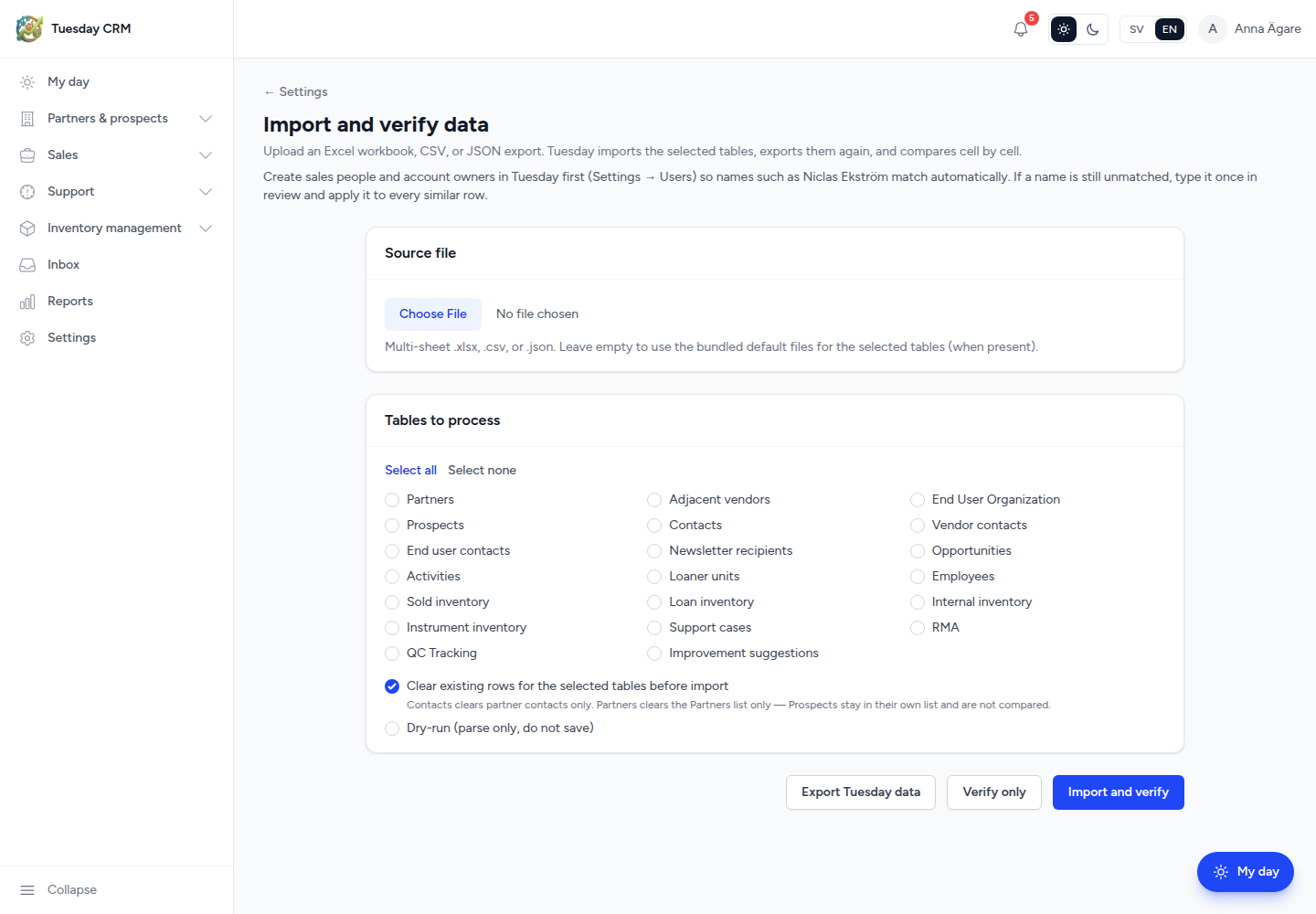
Upload an Excel workbook, CSV, or JSON export. Tuesday imports the selected tables, exports them again, and compares cell by cell.
Who can open this
CEO and Administrator by default.
Before you start
Create sales people and account owners under Users first so names in the file match Tuesday users. If a name is still unmatched after import, type it once in Review and apply it to every similar row.
Prefer a copy of production data on a test company until you trust the mapping.
Run an import
- Choose a Source file — multi-sheet
.xlsx,.csv, or.json. Leave the file empty only if you intend to use Tuesday’s bundled sample files for the tables you tick. - Under Tables to process, tick the lists to include. Use Select all or Select none.
- Optional:
- Clear existing rows for the selected tables before import — destructive. Contacts clears partner contacts only. Partners clears the Partners list only; Prospects stay in their own list and are not compared.
- Dry-run (parse only, do not save) — validates the file without writing.
- Click one of:
- Import and verify — write rows, then compare
- Verify only — compare without importing
- Export Tuesday data — download what is already in Tuesday
While it runs, the buttons show Running….
After a run
The summary looks like: N tables · N rows · N cells · N% match.
You also get counts for source vs Tuesday rows, cells checked, matching cells, and discrepancies.
| Result | Meaning |
|---|---|
| Matching cells | Source and Tuesday agree |
| Discrepancies | A cell differs — expected (source) vs actual (Tuesday) |
| Missing in Tuesday | A source row was not found after import |
| Extra in Tuesday | A Tuesday row is not in the file. Often an end-user or vendor contact that this Contacts import does not replace |
| Conflicts | A value needed conversion; Tuesday applied a guess or left an open item |
Download HTML report or Tuesday export when you need an archive.
Imported lines lists each line with a checkmark when it verified. Show failed lines only hides the successes.
Review failed lines
Click Review on a failed line.
- Read the problem and the Suggested solution (convert, leave blank, or add a note).
- Edit the fields if needed.
- Optionally tick Apply this mapping to every remaining failed row with the same source values (for example set owner to the same person on every similar partner).
- Choose OK — accept and next, Save edits, Skip and next, or Delete record.
- Open this record in Tuesday jumps to the live row.
When you are done, Save to … keeps the imported rows and your review edits, then opens that table.
More detail
Operators who run large migrations can follow the step-by-step notes in docs/MIGRATION_VERIFICATION.md. This chapter is the in-app workflow only.
← Settings