
Automations
Settings → Automations
Rules that run when something happens in Tuesday — a new contact, a deal changing stage, and similar events.
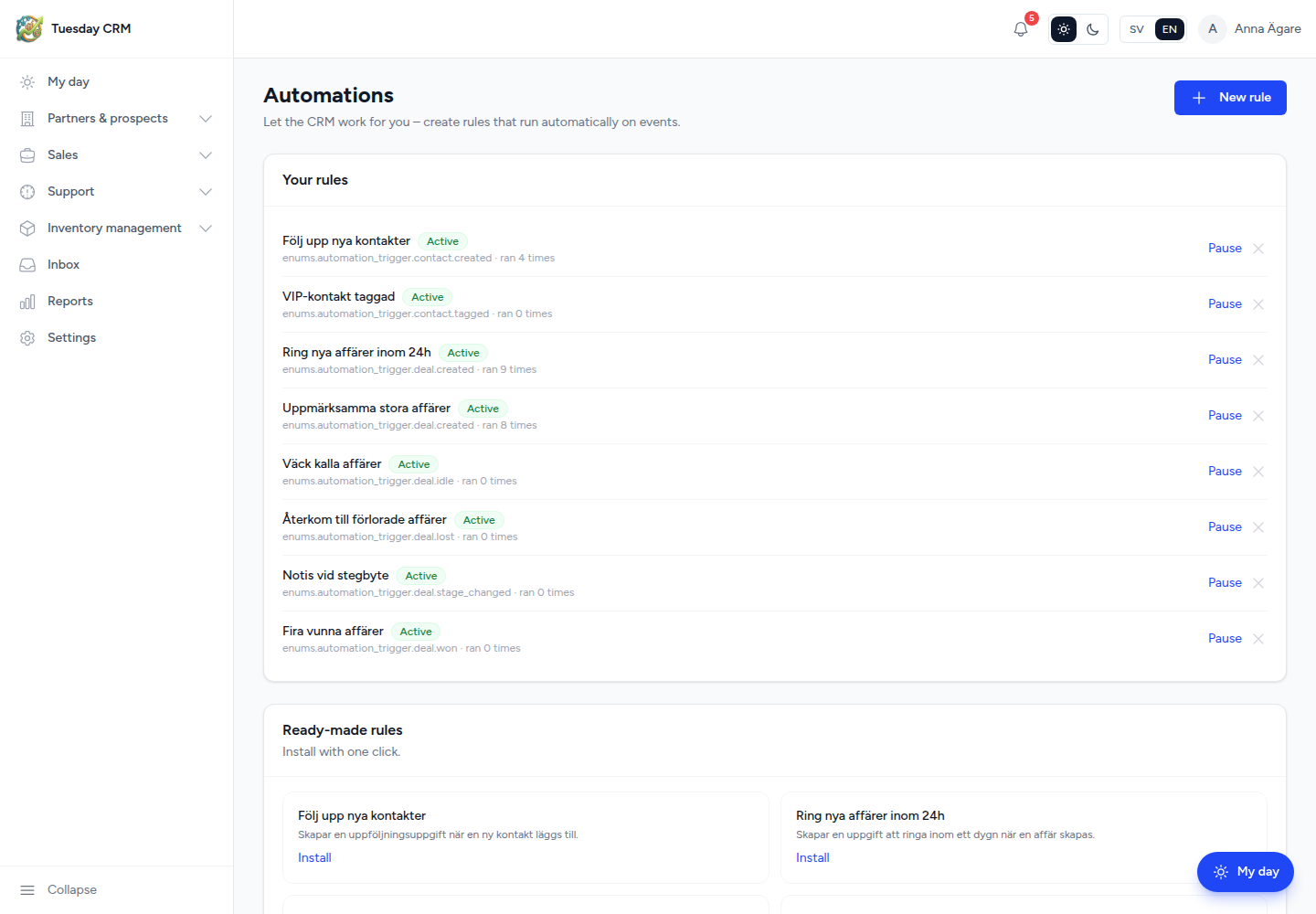
Let the CRM work for you – create rules that run automatically on events.
Who can open this
Internal roles that see the Automations card, and the company plan must include automations. On plans without that feature the card is hidden even for a CEO.
Install a ready-made rule
Ready-made rules are one-click blueprints.
- Read the card (what it triggers on and what it does).
- Click Install.
- The rule appears under Your rules as Active.
Use these first. You can pause or delete them later.
Create your own rule
- Click New rule.
- In Create automation:
- Name — for example
Follow up new contacts - When this happens (trigger) — the event that starts the rule
- If (condition – optional) — click + Add condition, then a field (for example
value), an operator, and a value. Add as many as you need. - Do this (actions) — click + Add action, choose an action type, and fill the title/label and extra fields (hours, message, and so on).
- Name — for example
- Click Save rule.
Cancel closes the builder without saving.
Your rules
Each saved rule shows Active or Paused and how many times it has ran.
| Action | Result |
|---|---|
| Pause | Stops firing until you activate it again |
| Activate | Turns a paused rule back on |
| Remove | Deletes the rule |
If the list is empty: No rules yet. Install a ready-made rule below or create your own.
Good practice
- Start with a ready-made rule and pause it if the volume surprises you.
- Conditions should be specific (a stage name, a minimum value) so the action does not fire on every record.
- Task-style actions show up on My day for the owner of the record.
← Settings